Window tiling
Windows normally float where you put them, and you snap them into place yourself. Turn on tiling and they arrange themselves instead: every window gets its own part of the screen, and nothing overlaps.
Choose how in Settings, under Desktop, Window tiling:
- Off: windows float, with snapping and snap layouts.
- Tiling: new windows share the screen with the ones already open.
- Scrolling: each window opens as a column on a strip that runs sideways past the edges of the screen.
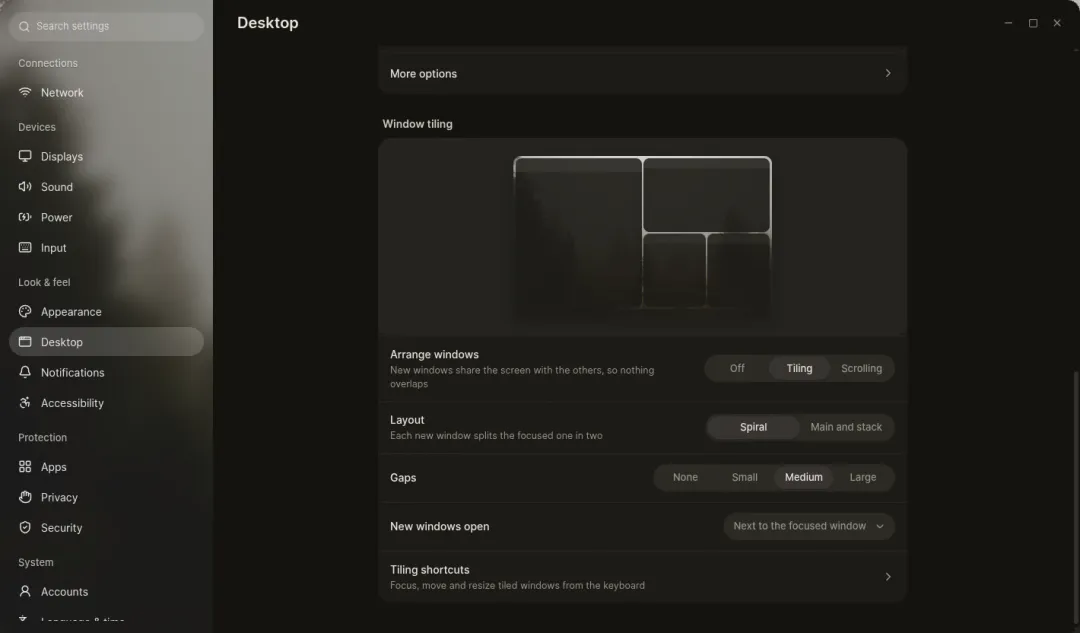
You can switch at any time. Open windows rearrange themselves straight away, and turning tiling off puts each window back where it floated before.
Tiling
Section titled “Tiling”Every new window takes part of the space of the window you’re using. There are two layouts:
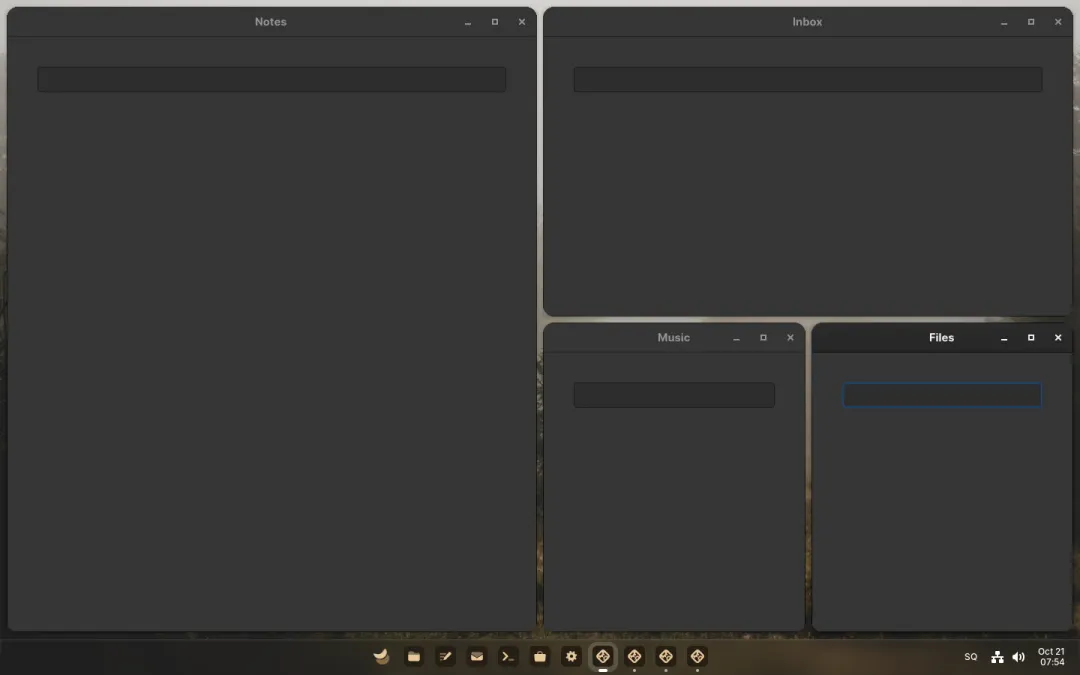
- Spiral splits the focused window in two, side by side when it’s wide and one above the other when it’s tall.
- Main and stack keeps one large window on the left and stacks the others on the right.
New windows open decides whether a new window lands next to the one you’re using or after the last one. Gaps sets the space between windows and around the edges of the screen; with no gaps, windows sit edge to edge and lose their rounded corners.
Moving around
Section titled “Moving around”| Shortcut | Does |
|---|---|
| Super+arrows | Focus the window in that direction, also on another display |
| Super+Shift+arrows | Swap the window with its neighbour, or move it to the next display at the edge |
| Super+Ctrl+arrows | Move the edge between windows |
| Super+F | Let the window float, or tile it again |
With the mouse, drag a window onto another to swap them, or onto another display to move it there. Dragging the edge of a window resizes its neighbours along with it.
Dialogs, windows that can’t be resized and windows on every workspace always float. When you let an app’s window float, Luft remembers it and opens that app floating next time; tiling it again forgets that. Floating windows stay above the tiled ones.
Maximize and full screen work as usual, and the window goes back into its place afterwards. Each display and each workspace keeps its own layout.
Scrolling
Section titled “Scrolling”Each window opens as a column to the right of the one you’re using, half as wide as the screen. The strip scrolls so the column you’re working in is always in full view, and the columns around it peek in from the sides.
| Shortcut | Does |
|---|---|
| Super+Left / Right | Focus the next column, scrolling to it |
| Super+Up / Down | Focus the window above or below in a column |
| Super+Shift+arrows | Move the column, or the window within its column |
| Super+Ctrl+Shift+Left / Right | Stack the window into the column next to it, or take it out into a column of its own |
| Super+R | Switch the column between a third, half, two thirds and the full width |
| Super+Ctrl+Left / Right | Make the column narrower or wider |
| Super+C | Center the column |
| Super+Shift+F | Make the column as wide as the screen, keeping the gaps, or give it back its width |
| Super+Ctrl+F | Widen the column over the space the columns beside it leave, so the windows in view fill the screen together |
| Super+Home / End | Focus the first or last column |
| Super+Shift+Home / End | Move the column to the start or end of the strip |
| Super+W | Zoom out to see the whole strip; click a window to go to it |
| Super+F | Let the window float, or put it back on the strip |
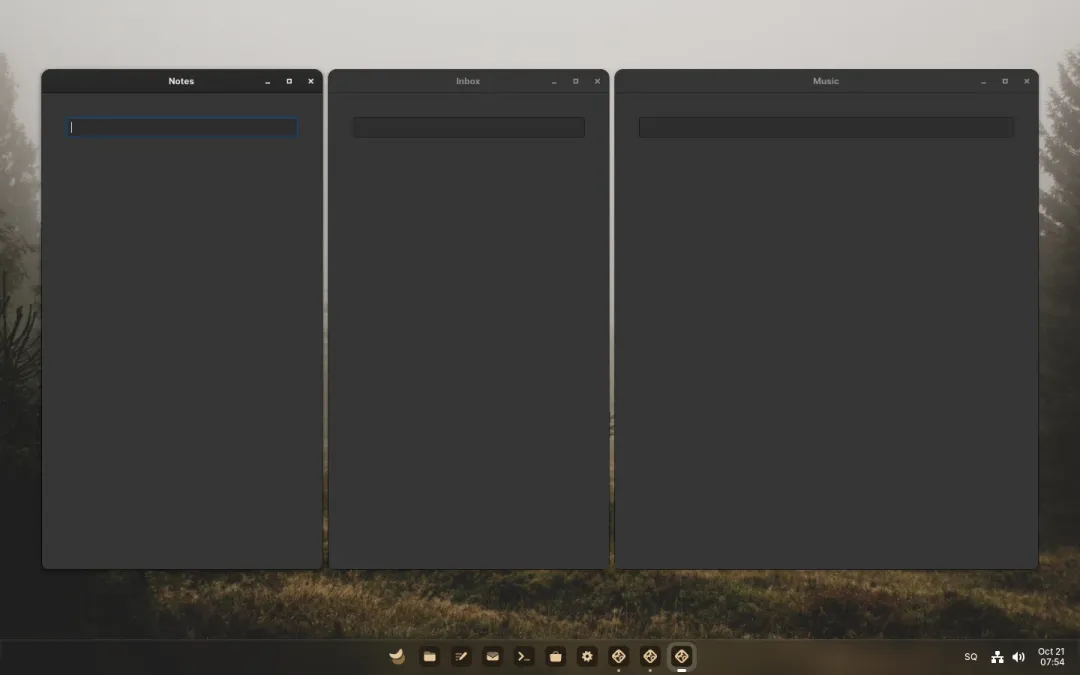
On a touchpad, swipe sideways with three fingers to scroll the strip; when you let go it settles on a column and focuses it. Four fingers sideways still switch workspaces.
Each display has its own strip, and a column that peeks over the edge to another display is cut off there instead of spilling onto it.
Shortcuts
Section titled “Shortcuts”All of these can be changed in Settings, under Input, Keyboard shortcuts, in the Tiling section. While tiling is on, the arrow shortcuts take over from snapping with Super+Left and Right, maximizing with Super+Up and moving windows between displays with Super+Shift+arrows, and while scrolling, Super+Home and End go to columns instead of workspaces; with tiling off, those work as before.