Magpie
Magpie opens photos, videos, music, PDFs and fonts. Opening a file shows just that file, with the rest of its folder an arrow key away. Started on its own, Magpie opens your Pictures, with Pictures, Videos, Music and Documents in the sidebar.
Photos
Section titled “Photos”- The common formats, plus HEIC, JPEG XL, TIFF, OpenEXR, JPEG 2000 and more. Animated GIF, WebP and PNG play.
- Zoom, pan, rotate, flip, copy, and a slideshow.
- Camera details, with a map link when a photo knows where it was taken.
- Set as wallpaper, for the light or the dark style. The picture is copied into
~/Pictures/Wallpapers, where Settings finds it.
Videos and music
Section titled “Videos and music”- Videos play with frame previews when you hover the timeline, speed control, picture in picture, and subtitles from
.srtor.vttfiles or from inside MKV and MP4 files. Magpie remembers where you stopped. - H.264, HEVC and other formats the viewer can’t decode itself play through the system’s media framework, with the same controls. When a video can’t play at all, Magpie offers other apps that might.
- Music turns the folder into a queue, with tags, covers, shuffle and repeat. The media controls in Notifications control it, and songs you open while one plays join the queue.
PDFs and fonts
Section titled “PDFs and fonts”- PDFs have selectable text, links, search, zoom and page thumbnails.
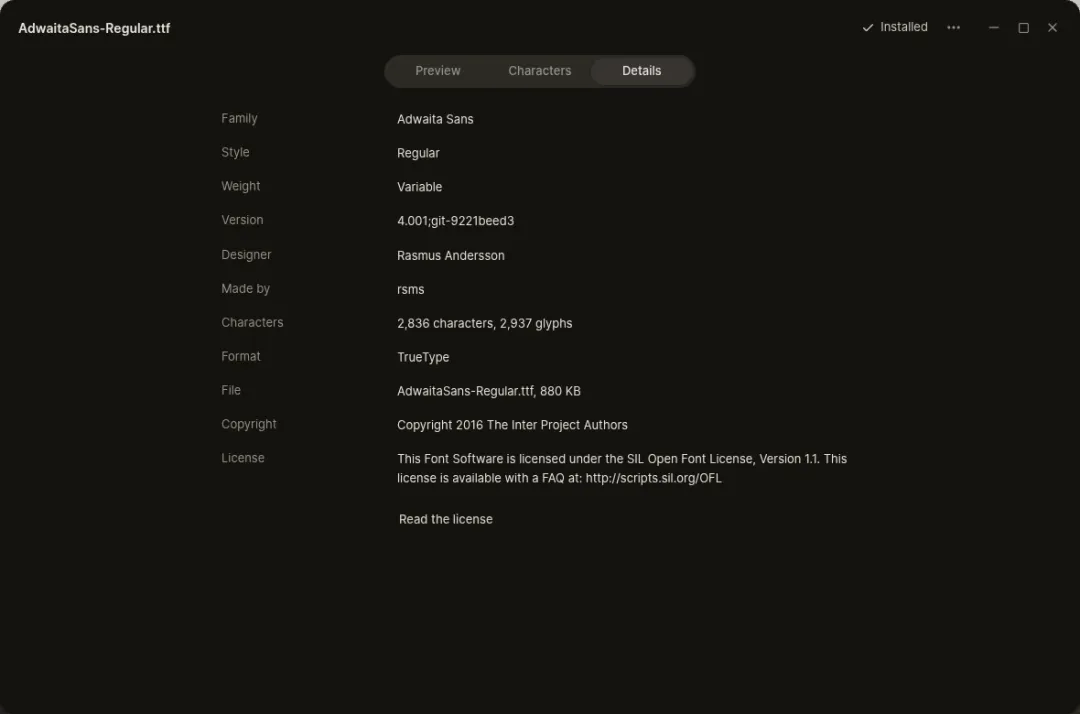
- Fonts show samples, every character, details, variable font axes and the faces in a collection. Install adds a font for your account, and you can make it the interface or monospace font from there.
Keyboard shortcuts
Section titled “Keyboard shortcuts”| Shortcut | Does |
|---|---|
| Left / Right | Previous and next photo or font; seek 5 seconds in videos and music |
| Page Up / Page Down | Previous and next item |
| Space | Play or pause |
| J / L | Seek 10 seconds back or forward in videos |
| + / - / 0 / 1 | Zoom in, zoom out, fit, actual size |
| R / Shift+R | Rotate right and left |
| H | Flip |
| F5 | Slideshow |
| Up / Down / M | Volume and mute |
| S | Shuffle |
| Ctrl+F | Find in a PDF |
| Alt+Enter | Photo details |
| F9 | Sidebar, thumbnails, queue or pages |
| F or F11 | Full screen |