The board
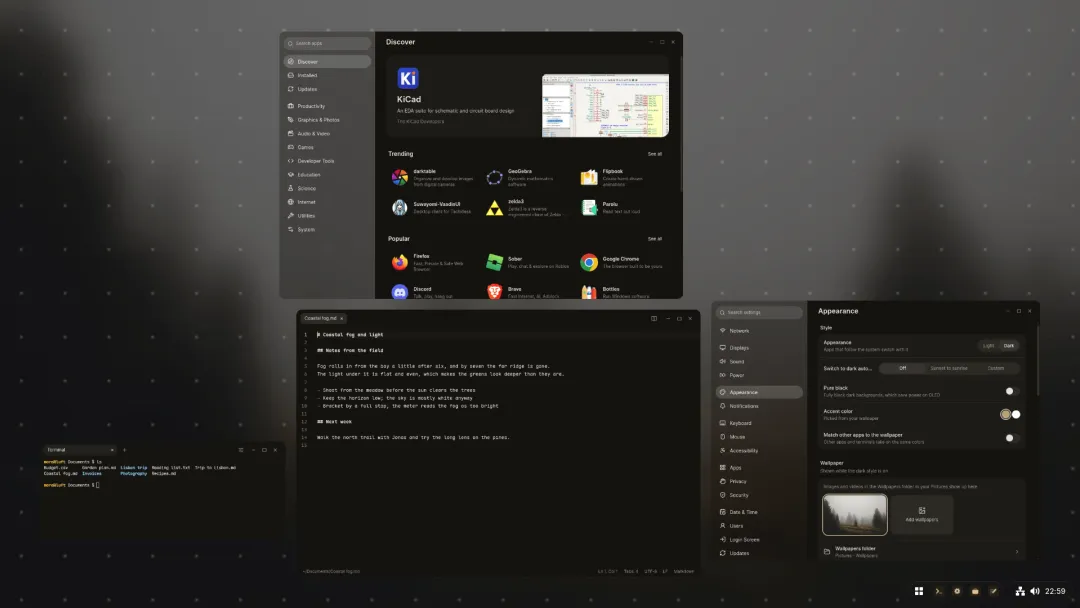
The board turns a workspace into an endless canvas. Every window gets its own spot side by side, nothing overlaps, and you move around the canvas instead of shuffling windows. Zoom out to see everything at once, zoom into one window to work in it, and slide over to the next.
Turning it on and off
Section titled “Turning it on and off”- Press Super twice, quickly.
- Or swipe up with four fingers on the touchpad; swipe down to leave.
Each workspace has its own board. When you leave, the window you were in is maximized, so you carry on where you were, and the others are minimized.
While the board is on, the taskbar steps aside. A small dock in the bottom-right corner holds Start, one icon per app, the status icons, battery and clock; clicking an app enters its next window, and clicking the clock opens Quick settings.
Moving around
Section titled “Moving around”| Keyboard | Touchpad | Mouse | |
|---|---|---|---|
| Pan | Super+arrows | Three fingers, or scroll with two | Drag the empty canvas, or drag with the middle button |
| Zoom | Super+= and Super+- | Pinch | Ctrl+scroll |
| See everything | Super+0 | Double-click the canvas |
Entering windows
Section titled “Entering windows”Entering a window brings it to the front and fills the view with it, so you can work in it as usual.
- Super+Enter enters the window you’re using.
- Pinch out over a window.
- When zoomed out, click a window.
- Maximizing a window on the board enters it.
While you’re in a window, Super+Left and Right, or three fingers sideways, move to the window next to it. Super+Esc, pinching in, or three fingers down step back out to the whole board. Show all windows in the corner does the same.
Arranging
Section titled “Arranging”When zoomed out, drag a window to move it. On a touchpad, tap with three fingers and then swipe to move the window under them.
Making a window full screen leaves the board.