Settings
Settings reads and writes the same settings as the desktop, so a change made from Quick settings or the taskbar shows up here right away, and the other way round. Searching in Start finds Settings pages and sections too, such as “night light” or “fonts”.
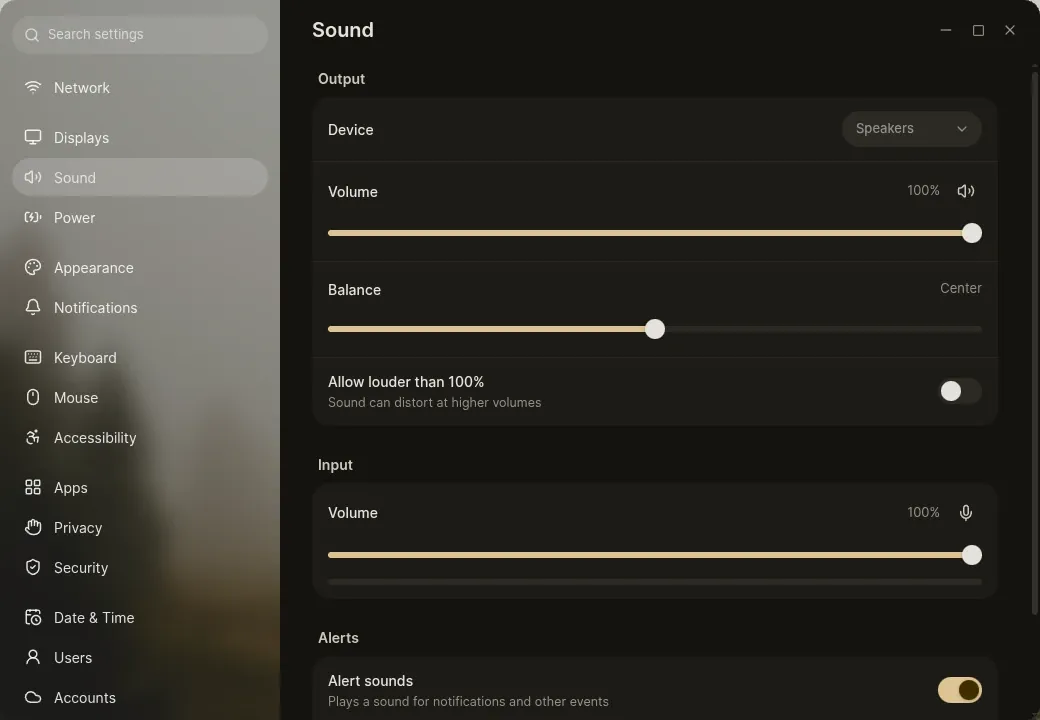
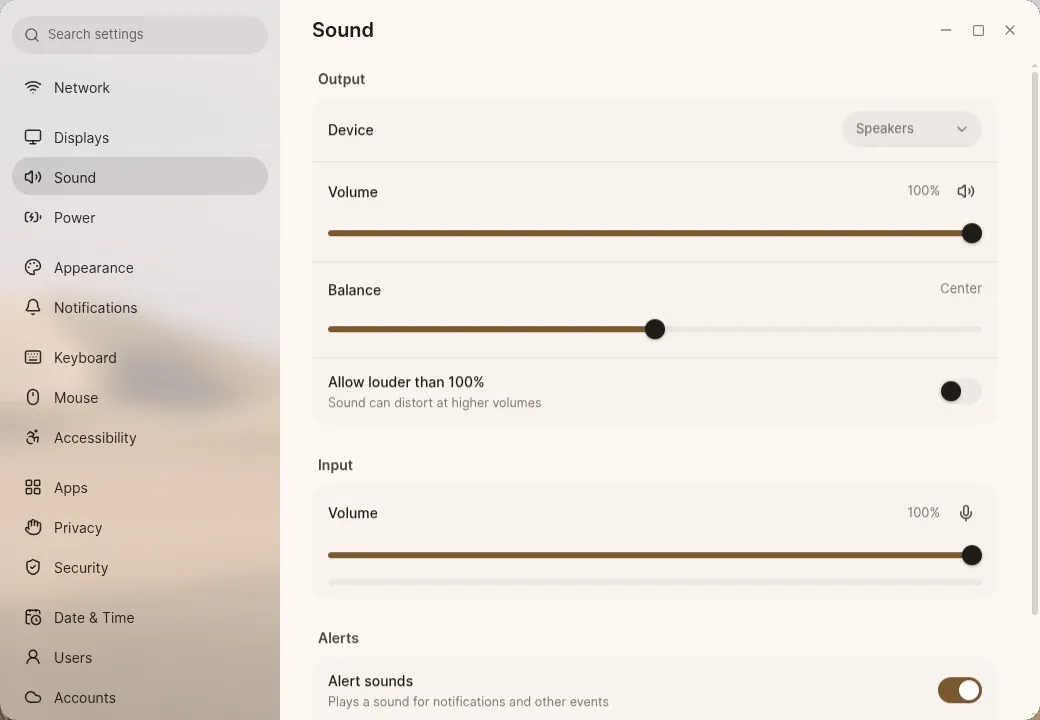
Pages for hardware you don’t have stay out of the way: Bluetooth only appears with an adapter, and Mouse & Touchpad is named after what’s connected.
| Page | What’s there |
|---|---|
| Network | Wi-Fi, wired, airplane mode, VPN and proxy. Each connection has its own page with its addresses, DNS, routes, whether it’s metered, and a private hardware address for Wi-Fi |
| Bluetooth | Pairing and connecting, staying visible to nearby devices for a while, and bringing devices paired in Windows |
| Displays | Arrangement, mirroring, the main display, resolution, refresh rate, variable refresh, orientation, scale, brightness and Night Light. See Displays |
| Sound | Output and input devices, volume and balance, louder than 100%, a volume and output for each app, device profiles and alert sounds |
| Power & Battery | Power mode, battery health and a charge limit, the battery of connected devices, when the screen turns off and the computer sleeps, the power button, and the keyboard backlight |
| Appearance | Light and dark, wallpapers, accent, app icons, the taskbar, cursors, fonts, text size and animations. See Appearance |
| Notifications | Do Not Disturb, the lock screen, and each app’s banners, sounds and whether it may interrupt Do Not Disturb |
| Keyboard | Input sources, key repeat, what Caps Lock does, and every keyboard shortcut, including your own. Layouts and input methods made in Keys show up here |
| Mouse & Touchpad | Pointer speed, acceleration, natural scrolling, tap to click, how you scroll and right-click, and turning the touchpad off while typing |
| Accessibility | Screen reader, zoom, large text, high contrast, reduce motion, on-screen keyboard, typing assist and pointing aids. See Accessibility |
| Apps | Default apps and apps that start when you sign in |
| Privacy | Screen lock, location, camera and microphone access per app, file history, and emptying the trash and temporary files |
| Security | Device encryption and its recovery key, Secure Boot, the security chip, games with anti-cheat, USB protection, the keyring, SSH keys and passkeys. See Security |
| Date & Time | Automatic time and time zone, the clock’s format, and the first day of the week |
| Users | Your picture, name and password, and fingerprints |
| Accounts | Cloud drives from iCloud Drive, OneDrive, Dropbox, Nextcloud and WebDAV. See Accounts and cloud drives |
| Login Screen | Who is listed, automatic login, the default session and the login screen’s wallpaper |
| Updates | System updates, firmware updates, going back to the previous version, and switching between the standard and NVIDIA images. See Updates |
| About | The device’s name and hardware, storage, other systems on the computer, software versions and recent problems |
Display changes
Section titled “Display changes”Changes on the Displays page wait in a bar at the bottom until you choose Apply, so you can set resolution, scale and arrangement together. Reset throws them away.
Opening a page from elsewhere
Section titled “Opening a page from elsewhere”Other apps open Settings at a page with a kestrel-settings: link, such as kestrel-settings:appearance/taskbar or kestrel-settings:updates. If Settings is already open, the link switches the window to that page.