Appearance
Everything here is in Settings, under Appearance.
Light and dark
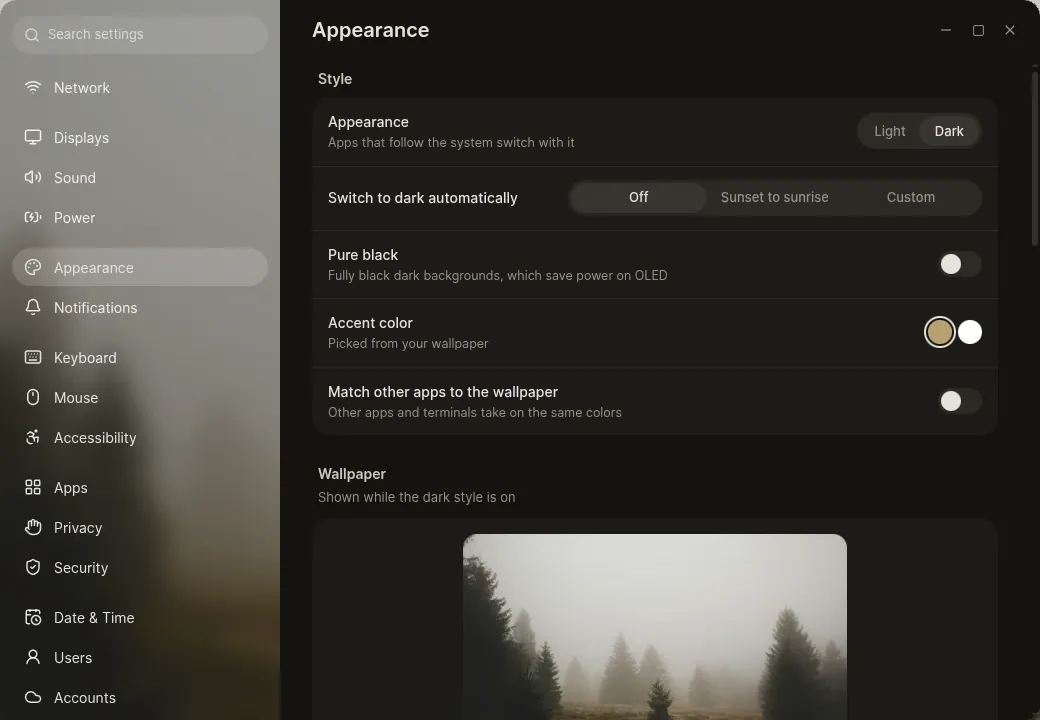
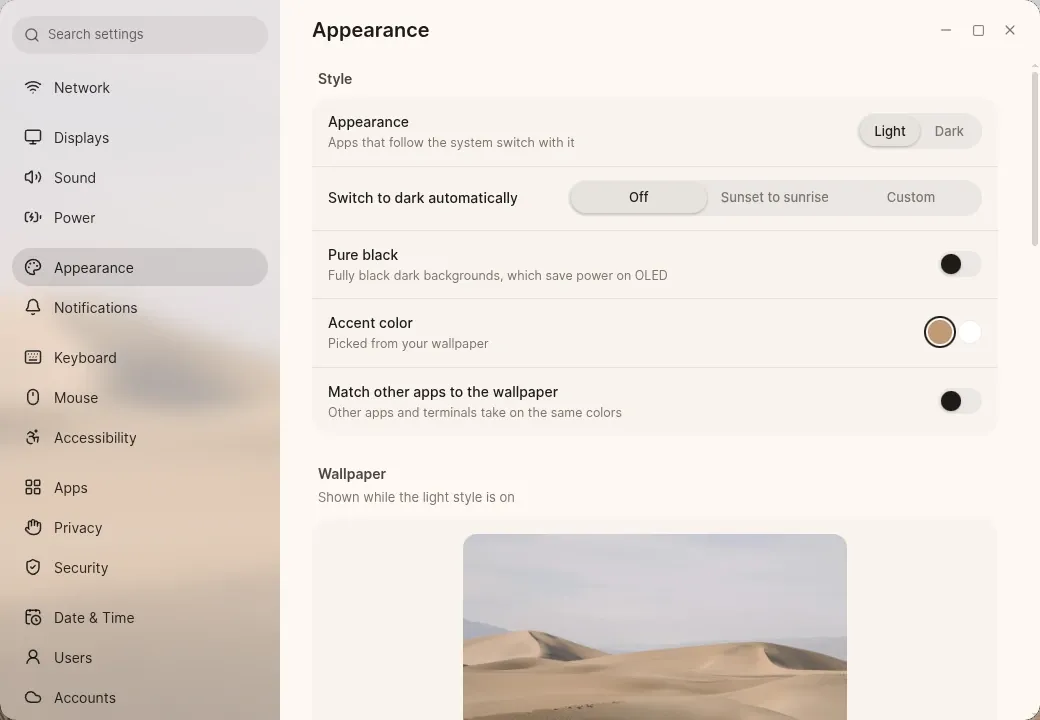
Section titled “Light and dark”Luft starts dark. Choose Light or Dark, or let Switch to dark automatically do it at sunset and sunrise, or at times you choose. The Dark Style tile in Quick settings and dark mode in Start switch too.
- Pure black makes dark backgrounds fully black, which saves power on OLED screens.
- The login and lock screens stay dark in both styles.
Wallpapers
Section titled “Wallpapers”Luft comes with 35 wallpapers, photographs of fog, dunes, mountains, coasts and skies. Pictures and videos you put in ~/Pictures/Wallpapers join them, and Magpie can set any photo as the wallpaper.
- The light and dark styles each keep their own wallpaper. Luft starts on Fog for dark and Dunes for light.
- When a picture and your display have different shapes, drag the preview to choose which part stays on screen. Luft guesses a good spot for each picture by itself.
- Fit chooses between Fill, Fit, Center, Stretch, Tile and spanning every display.
- Videos play as live wallpapers. On a laptop, you choose whether they keep playing on battery.
Accent colour
Section titled “Accent colour”Luft takes an accent colour from your wallpaper and builds a full palette from it, for light and dark, with readable contrast whatever the picture. The desktop and Luft’s apps use it together, so a new wallpaper restyles everything at once. Choose White instead for a black and white look.
Matching other apps
Section titled “Matching other apps”Match other apps to the wallpaper gives other apps the same colours: GTK and libadwaita apps, Qt and KDE apps, and the Ghostty terminal. Turning it off removes them again. Wallpaper colours has the details, including how apps can read the palette themselves.
App icons
Section titled “App icons”| Style | Looks like |
|---|---|
| Tinted | Every icon drawn as a two-tone glyph in one colour, the accent or one you choose, on a soft plate. This is the default |
| Clear | White glyphs on a see-through plate, dark ones in the light style |
| Original | Each app’s own icon |
Taskbar
Section titled “Taskbar”The taskbar’s look, shape, size and alignment are under Taskbar. See the taskbar’s options.
Text and fonts
Section titled “Text and fonts”- Fonts picks the interface and monospace fonts. Luft uses Open Runde and Maple Mono. All fonts lists every installed font, and removes ones you added.
- Text size goes from 80% to 160%.
Cursors
Section titled “Cursors”Pick a cursor theme and size. Get more cursors finds and installs themes from GNOME-Look; themes you installed can be removed again.
Animations
Section titled “Animations”Animations turns animation off entirely, so everything changes at once. To keep animation but take out the movement, use Reduce motion in Accessibility.