Keyring and passkeys
Luft Keyring keeps your passwords, sign-in tokens and keys. Apps use it the standard way, so browsers, mail apps and tools that save passwords on Linux work without changes. It is also your SSH agent and GnuPG’s passphrase prompt.
Unlocking
Section titled “Unlocking”Signing in unlocks the keyring, with your password or a fingerprint. With a TPM, the keyring’s key is also sealed to the chip, so a fingerprint can unlock it too, and an optional PIN can be asked after the fingerprint. Automatic login never unlocks it.
Settings, under Security, Passwords and keys, can lock it with the screen and lock or unlock it by hand.
Which apps get what
Section titled “Which apps get what”Every request is tied to the app that made it.
- An app can always use what it saved itself.
- Anything else asks first, naming the app and the item, such as Allow Firefox to use “github.com”?. You can remember the answer for that app.
- Settings shows which app read, saved or deleted what, and when, and takes back remembered choices.
SSH keys
Section titled “SSH keys”- Keys you add with
ssh-addare kept in the keyring.ssh-add -casks before each use, and a fingerprint can answer. - Settings creates new keys. With a TPM, a key can live in the chip, where it can’t be copied.
- Copy the public key puts it on the clipboard for a server or Git host.
GnuPG asks for passphrases and smart card PINs through Luft’s own prompt, and can save a passphrase in the keyring.
Passkeys
Section titled “Passkeys”Luft Passkeys keeps passkeys on the computer and offers them to every browser and app. Creating a passkey or signing in with one shows a prompt naming the site and the app, confirmed with your fingerprint or password. When a site has several accounts, you pick one in the same prompt.
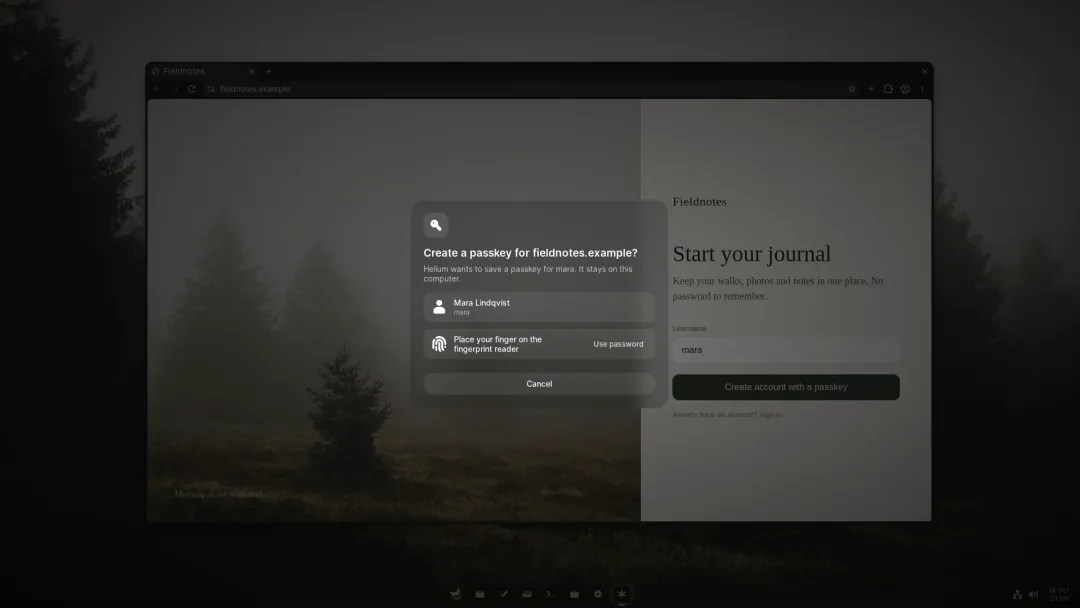
Browsers see Luft Passkeys as a USB security key, so Helium, Chrome and other Chromium-based browsers, Firefox, and Electron apps work without extensions. Because of that, browsers call it a security key and don’t offer passkeys in autofill yet.
- With a TPM, each passkey’s private key is made inside the chip and never leaves it. Without one, the keyring keeps it.
- Passkeys stay on this computer and aren’t synced or backed up.
- Settings, under Security, lists passkeys by site with when each was last used, and can rename or remove them.
What it protects against
Section titled “What it protects against”The keyring is one encrypted file. It protects your secrets when someone has your disk or the computer while it’s off, when the startup was changed in a way Secure Boot sees, and from other accounts and from apps you didn’t allow. It can’t protect you from someone using the computer while you’re signed in, or from malware already running as you. The Security model goes into the details.