Security
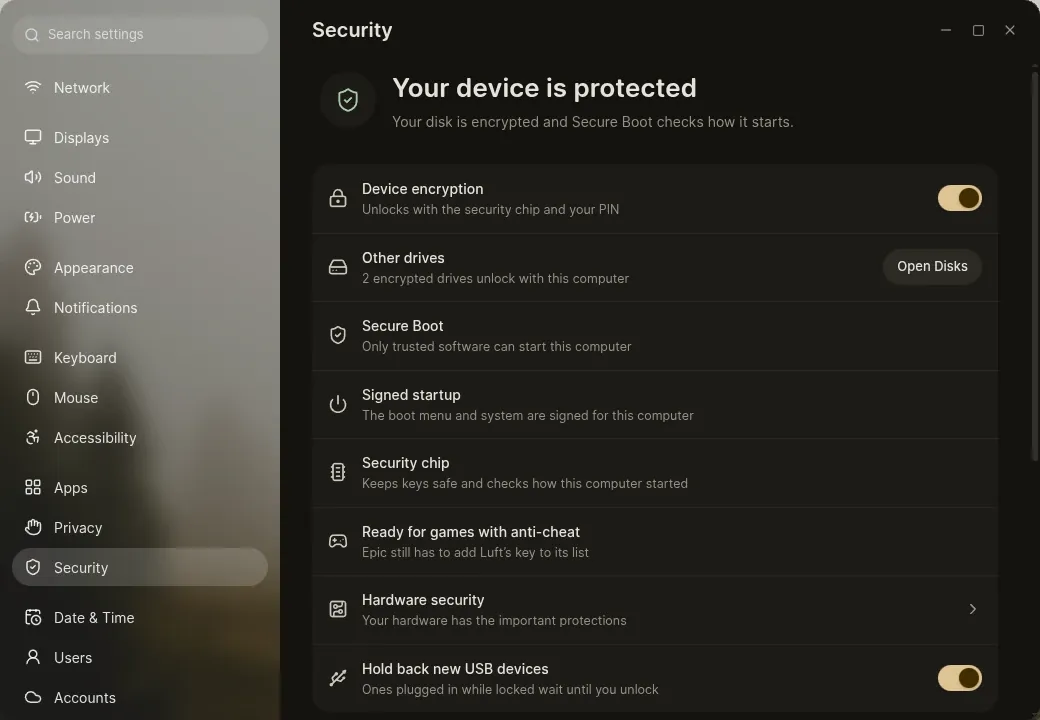
Settings, under Security, shows how protected the computer is and what’s missing, in one place.
A signed startup
Section titled “A signed startup”Everything that starts a Luft computer is signed, from the firmware to the last system file:
- The firmware starts Fedora’s boot loader, signed by Microsoft.
- That starts Luft’s boot menu, signed with Luft’s key.
- The boot menu starts Luft’s startup image, the kernel and everything it needs in one signed file.
- The startup image names the exact system it belongs to, and the system is only mounted if every file matches.
So nothing between pressing the power button and your desktop can be changed without Secure Boot noticing. Your computer trusts Luft’s key once you confirm it on the blue screen.
Secure Boot stays optional. With it off, Luft still starts, and nothing is locked down against you as the computer’s owner: drivers you build yourself load, but games with anti-cheat aren’t available.
Device encryption
Section titled “Device encryption”Turn on encryption in Settings, under Security. It encrypts the disk in place, without reinstalling:
- Save the recovery key Settings shows, somewhere other than this computer.
- Restart. A few seconds of Encrypting your device while the computer starts, then the desktop.
- The rest is encrypted in the background, pausing on battery. A crash or power cut loses nothing.
With a TPM, the disk unlocks by itself when the computer started the way it should. An optional PIN of 6 to 20 digits adds something only you know. Without a TPM, a passphrase is asked at every start.
The TPM keeps unlocking through Luft’s updates and ordinary firmware updates. If Secure Boot is turned off or its keys change, the computer asks for the recovery key once and says why; afterwards Settings offers to link the TPM again. Settings can show the recovery key again, after your password, and replace it.
Encryption needs the system on a single partition with nothing else unencrypted on the disk, 1 GB free, and the computer plugged in. Settings checks these first.
Other drives
Section titled “Other drives”Disks can encrypt other drives in place, with a recovery key and an optional passphrase. Unlock automatically on this computer opens them without asking once the system disk is encrypted, like BitLocker’s automatic unlock.
Luft Keyring
Section titled “Luft Keyring”Your passwords, sign-in tokens and keys live in Luft Keyring, encrypted in one file. Signing in unlocks it, with your password or a fingerprint, and it locks with the screen if you like. Keyring and passkeys explains how apps get access.
USB protection
Section titled “USB protection”While the screen is locked, and at the login screen, new USB devices wait until you unlock. Keyboards, mice, security keys and hubs connect right away, but a gadget that also poses as a network adapter or a drive only gets its keyboard part. When you unlock, everything that waited connects and a notification names it.
Devices already connected keep working. Turning this off in Settings needs an administrator.
Games with anti-cheat
Section titled “Games with anti-cheat”Easy Anti-Cheat for Linux and others like it only let a game run when the computer can show it started the way its maker intended. Luft meets each of Epic’s requirements by default: a signed kernel and drivers, a TPM, Secure Boot with well-known keys only, a measured startup, the IOMMU, a locked-down kernel, and kexec turned off.
Settings says Ready for games with anti-cheat, or the first thing missing, such as Secure Boot being off. If other keys were added to the boot loader in the past, Settings can remove them, after you confirm on the blue screen at the next restart.
Epic’s list of well-known keys doesn’t include Luft’s key yet. Nothing on your computer changes that; games that check for it start working once Epic adds it.
Hibernation isn’t available while the kernel is locked down. Sleep works as usual.
Further reading
Section titled “Further reading”Security model and Boot and recovery go into the details: which keys sign what, what the TPM measures, and what each protection does and doesn’t guard against.
From the command line, sudo trustctl status shows Secure Boot, the keys, the TPM and the disk, and sudo trustctl anti-cheat lists each anti-cheat requirement.