Notifications
Click the clock on the taskbar, or press Super+N, to open the notification center. What’s playing sits on top, then your notifications, then a calendar.
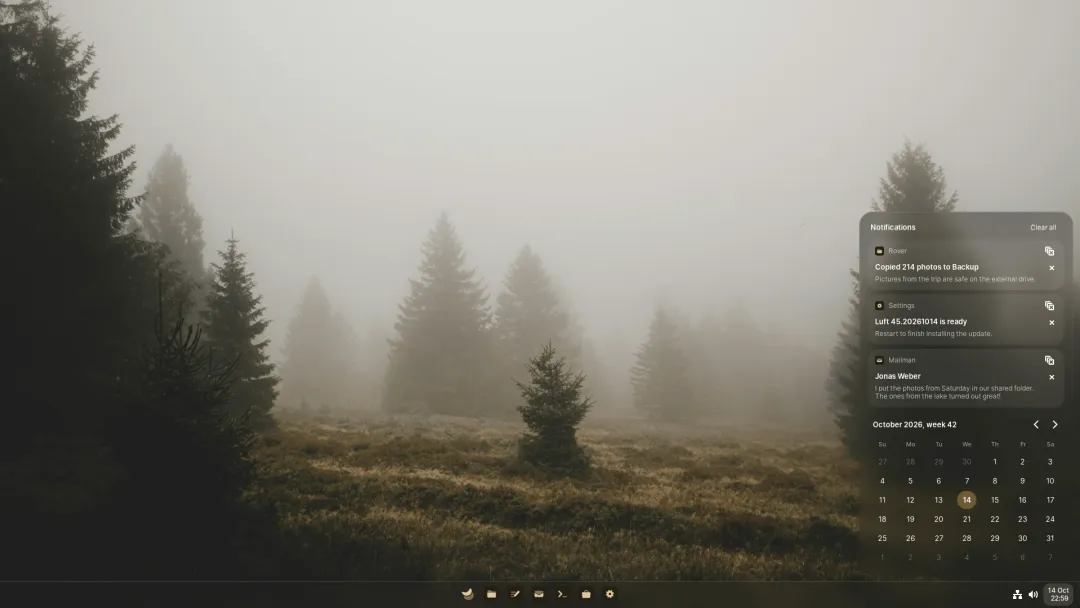
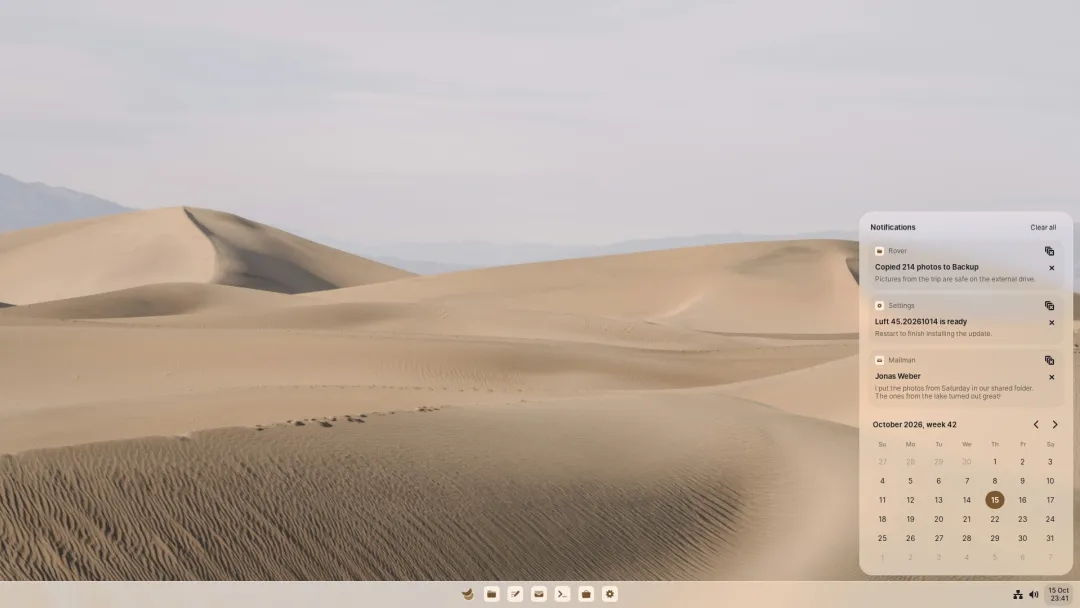
Notifications
Section titled “Notifications”- Notifications are grouped by app, newest first. Each group shows two and folds the rest behind N more.
- Click one to open it, or press Delete or its close button to dismiss it. Clear all empties the list.
- Buttons an app adds appear under the notification. Apps that support it offer Reply, which turns into a text field right there.
- Right-click a notification for its app’s notification settings.
What’s playing
Section titled “What’s playing”The player that’s playing, or the last one you used, shows its cover, title and artist with previous, play and next. Click it to bring the player forward. It also appears on the lock screen.
The calendar
Section titled “The calendar”A month at a time, with week numbers. Click the month’s name to come back to today. The first day of the week follows your region, or what you set in Settings, under Date & Time.
Do Not Disturb
Section titled “Do Not Disturb”Turn it on from Quick settings, or type dnd in Start. Banners stop popping up, and notifications collect quietly in the center.
Each app can be allowed through: in Settings, under Notifications, choose an app and set Allow during Do Not Disturb to Never, Urgent only (the default) or Always.
On the lock screen
Section titled “On the lock screen”The lock screen shows a few notifications from each app, with their text. To hide the text, turn off Show message content in Settings, under Notifications, or right-click the notification center. Each app can also be kept off the lock screen entirely.