Disks
Disks shows the drives in your computer and the ones you plug in. Each drive is one bar with its partitions to scale, and each partition has the action you most likely want next to it: Open, Mount or Unlock.
What it does
Section titled “What it does”- Mount and unmount, rename, open in Rover, and choose whether a partition mounts at startup.
- See what’s using space on a partition or in any folder, as a map and a sorted list, and move things to the trash from there.
- Format by purpose: All computers (exFAT), Linux only (ext4), or Other for Btrfs, NTFS and FAT32. Optionally encrypt it with a passphrase, or overwrite old data.
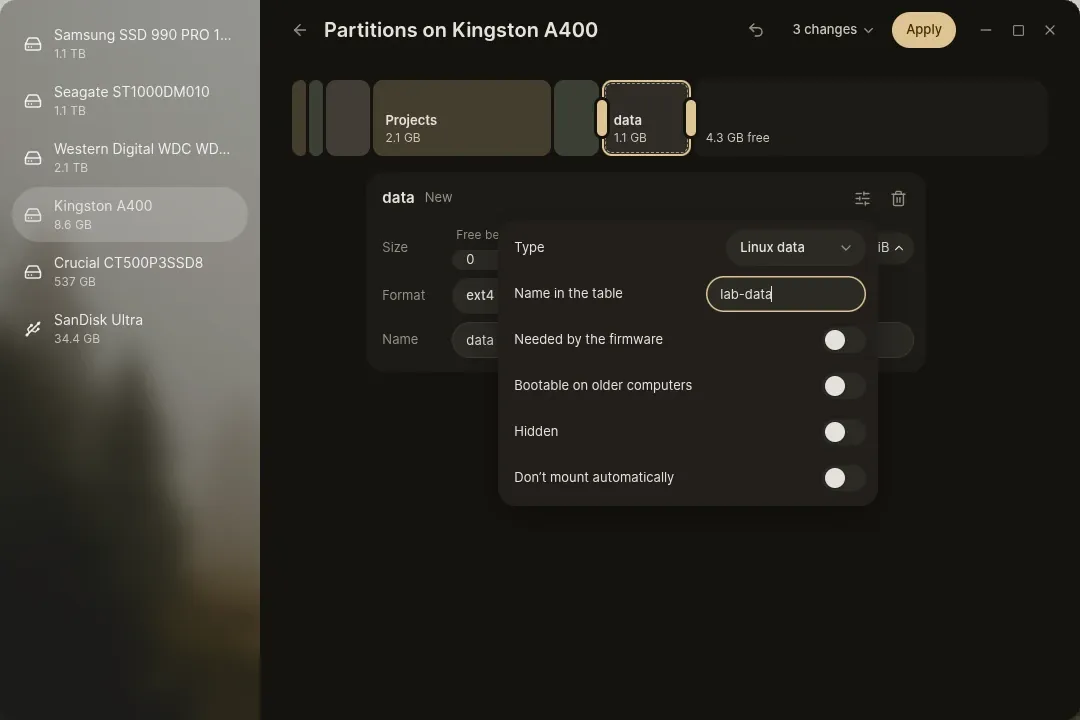
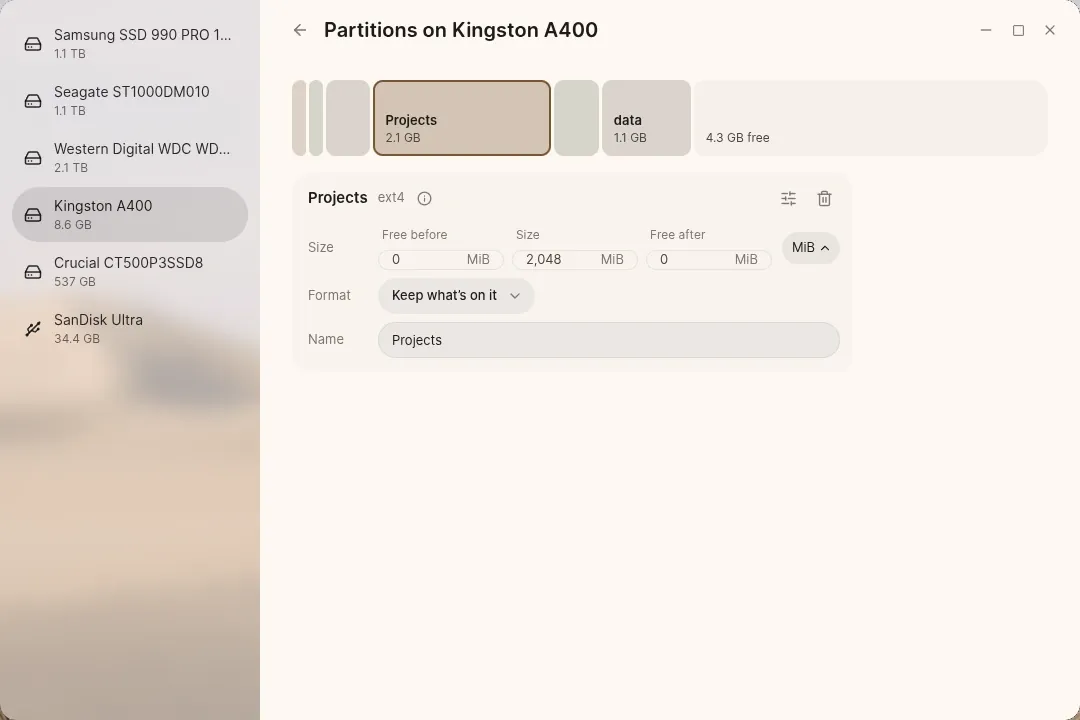
- Edit partitions: create, delete, grow, shrink and move them. Changes collect as a plan you can undo, and apply in one step.
- Encryption: unlock, lock, change the passphrase, and turn encryption on in place without losing data, with a recovery key. Encrypting runs in the background and can be paused. See Security.
- Health and self-tests for SATA and NVMe drives.
- Disk images: save a drive or partition as an image, write one back, and make a bootable USB stick from an
.isofile. Opening an.isoin Rover offers this. - Safely remove USB drives.
- Other systems: Windows and other Linux systems show up below their drive’s partitions, and can be removed to give Luft their space. See Removing Windows or the old system.
Anything that erases data asks first. You can look at the drive Luft runs from, but the partitions it uses can’t be changed. Changes that need an administrator ask for your password.