The taskbar
The taskbar sits along the bottom of the screen. From left to right in its middle are the Luft mark, which opens Start, and your apps. On the right are the tray, the status icons that open Quick settings, and the clock, which opens Notifications.


Pinned apps come first, then any other app that’s running.
- Dots under an app show how many windows it has, up to four. The app you’re using has wider dots.
- A badge counts unread messages, for apps that report them.
- A progress bar replaces the dots while an app reports progress, such as a download.
- A flash means an app wants your attention. It flashes three times, then stays lit until you look.
Clicking an app opens it, switches to its window, or minimizes the window if it’s already in front. When an app has several windows, clicking shows them all to choose from.
Hover over an app, or press Up on it with the keyboard, to see live previews of its windows, each with a close button.
Pinning
Section titled “Pinning”- Drag an app from Start onto the taskbar to pin it.
- Drag pinned apps along the taskbar to reorder them.
- Right-click an app for Pin to taskbar or Unpin from taskbar.
Right-click menus
Section titled “Right-click menus”| Where | What’s in it |
|---|---|
| An app | Open, New window, the app’s own actions, each of its windows, minimize and maximize, pin or unpin, and close |
| The taskbar | Show desktop, System monitor, and Taskbar settings |
| The status icons | Network and Sound settings |
| The clock | Date and time settings |
The tray
Section titled “The tray”Apps that live in the background, such as chat or sync apps, show up in the tray, a single button with up to four of their icons. Click it to see them all, and click one for its menu.
Show desktop
Section titled “Show desktop”The far right edge of the taskbar is a thin strip. Hover over it to fade every window away for a look at the desktop, and click it to minimize everything; click again to bring them back.
Options
Section titled “Options”Right-click the taskbar and choose Taskbar settings, or open Settings, Appearance, Taskbar.
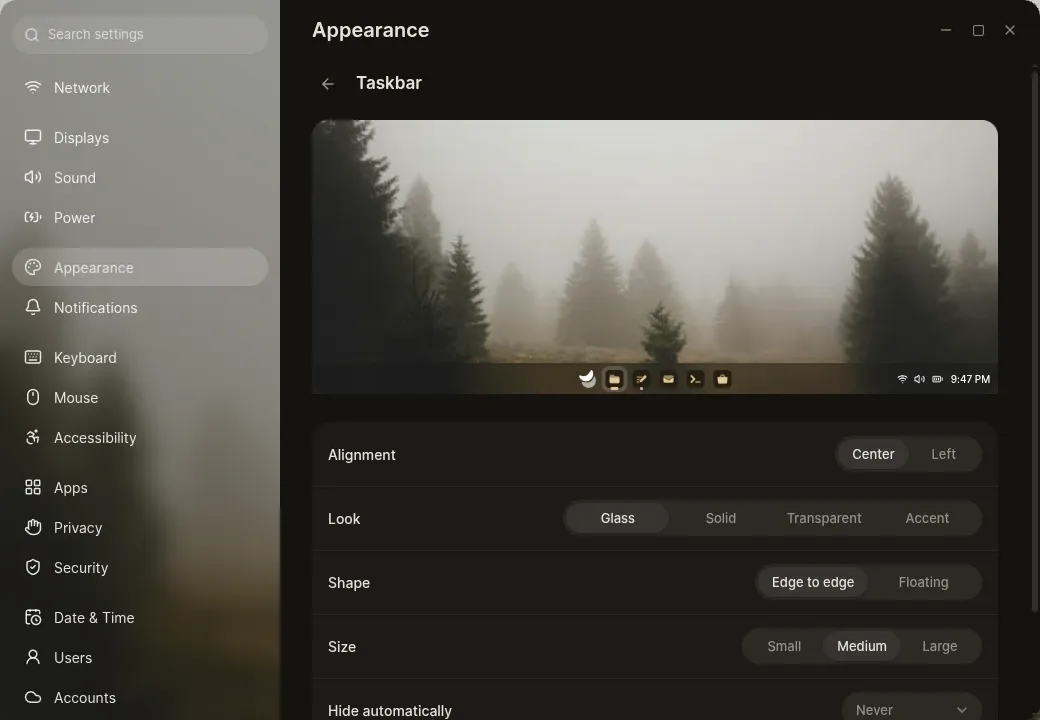
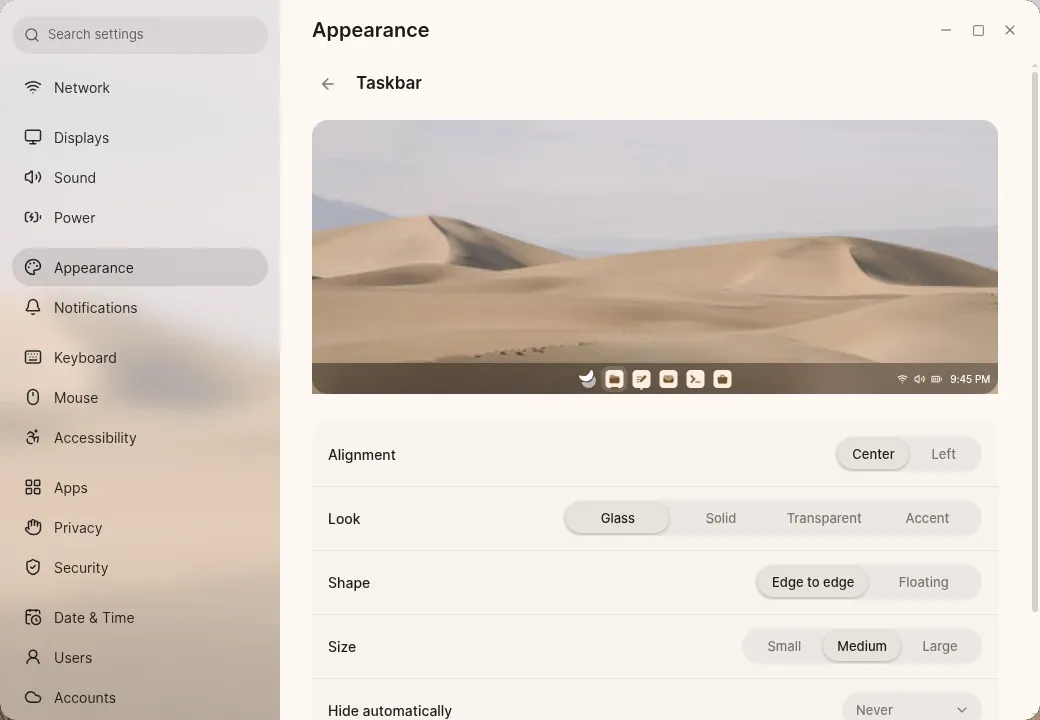
| Option | Choices |
|---|---|
| Alignment | Center, or Left |
| Look | Glass (blurred), Solid, Transparent, or Accent (tinted glass) |
| Shape | Edge to edge, or Floating, with rounded ends and a gap around it |
| Size | Small, Medium or Large |
| Hide automatically | Never, Always, or When a window touches it |
| Show pinned apps | When off, pinned apps move into Start instead |
| Only list windows on the current workspace | Each workspace’s taskbar shows only its own windows |
| Show on every display | With several displays, a taskbar on each one |
| Only list windows on the same display | Each display’s taskbar shows only its own windows |
The clock and status icons pick a light or dark ink, whichever reads better against what’s behind the taskbar, so they stay clear on any wallpaper.
With several displays, each one gets its own taskbar with Start, its apps and the clock. The tray, status icons and privacy indicator stay on the main display. A taskbar steps aside on a display where an app is full screen.