Snapping and snap layouts
Snapping with the mouse
Section titled “Snapping with the mouse”Drag a window by its title bar:
- to the left or right edge to fill that half of the screen
- to the top edge to maximize it
- to an edge near a corner, or to the top edge near a side, to fill that quarter
Drag a snapped window away and it goes back to the size it had before.
Snapping with the keyboard
Section titled “Snapping with the keyboard”Super+Left and Right snap the window to a half, Super+Up maximizes it, and Super+Down restores it.
Snap layouts
Section titled “Snap layouts”Press Super+Z to choose where the window you’re using goes, from six layouts:
- two halves
- two thirds and one third
- three thirds
- four quarters
- one half and two quarters
- a quarter, a half and a quarter
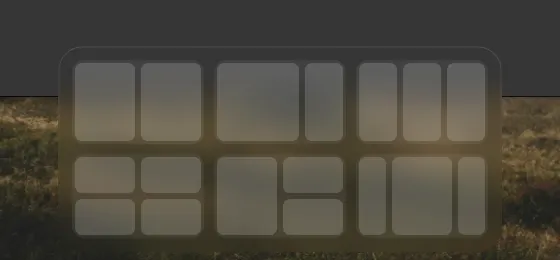
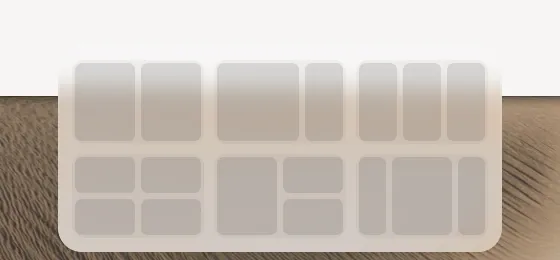
Click the spot you want in a layout. The picker sits just above the taskbar.
Snap groups
Section titled “Snap groups”Windows snapped side by side on the same workspace, without overlapping, become a group. Switching to one of them from the taskbar, Alt+Tab or All windows brings the others back too, so a layout you set up stays together.