The desktop
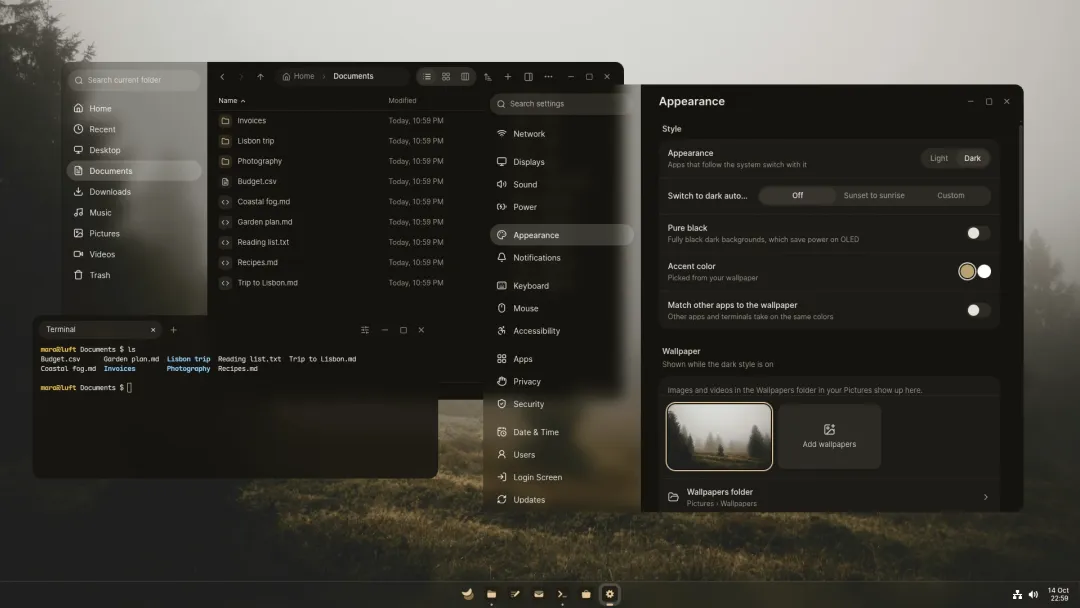
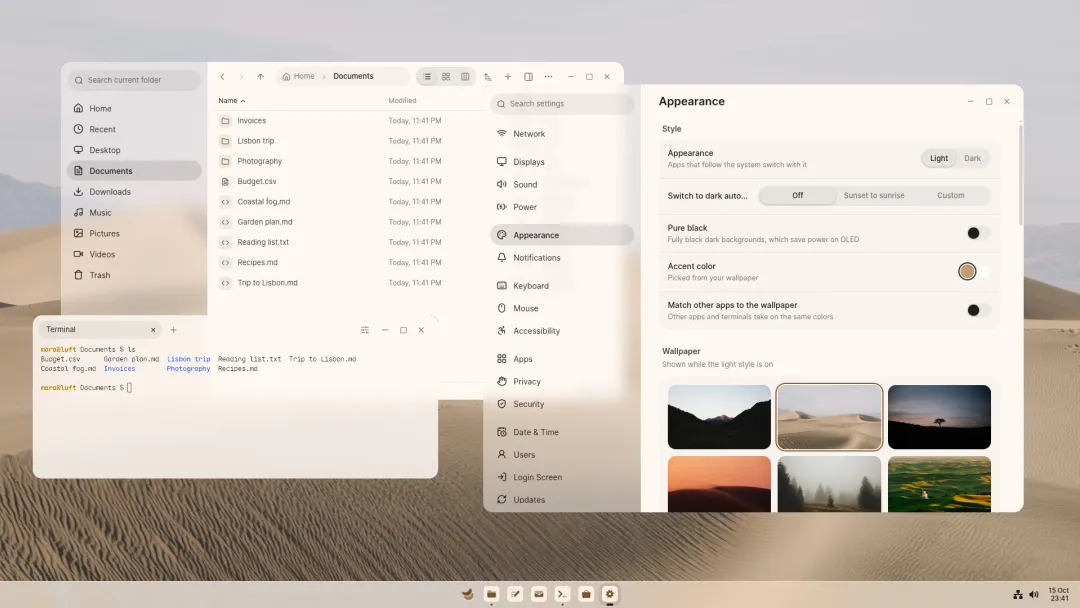
Luft’s desktop is called Kestrel. It’s everything around your apps: the taskbar, Start, Quick settings, notifications, the lock and login screens, and the way windows open, snap and move between workspaces.
The parts
Section titled “The parts”| Part | Opens with | |
|---|---|---|
| Taskbar | Always there, along the bottom | Pinned and running apps, the tray, status icons and the clock |
| Start | Super, or the Luft mark on the taskbar | Your apps, and search for apps, settings, files and quick answers |
| Quick settings | Super+S, or the status icons | Wi-Fi, Bluetooth, sound, brightness and other everyday switches |
| Notifications | Super+N, or the clock | Notifications, what’s playing, and a calendar |
| All windows | Super+Tab | Every window on the workspace, and your workspaces |
| Board | Super twice | The workspace as an endless canvas with windows side by side |
| Clipboard history | Super+V | What you copied recently, pictures included |
| Emoji and symbols | Super+. | Emoji, symbols and kaomoji |
| Screenshots | Screenshots and screen recordings |
Keyboard shortcuts and gestures lists every shortcut.
Colours from your wallpaper
Section titled “Colours from your wallpaper”Kestrel takes an accent colour from your wallpaper and builds a full palette from it, for light and dark. The desktop and Luft’s apps use it together, so changing the wallpaper restyles everything at once. See Appearance.
Privacy indicator
Section titled “Privacy indicator”When an app uses the camera, the microphone, your location, or shares or records the screen, an icon appears on the taskbar. Click it to see who’s using what, mute a microphone, close the app, stop sharing or recording, or turn off location. It’s hidden when nothing is in use.
The lock and login screens
Section titled “The lock and login screens”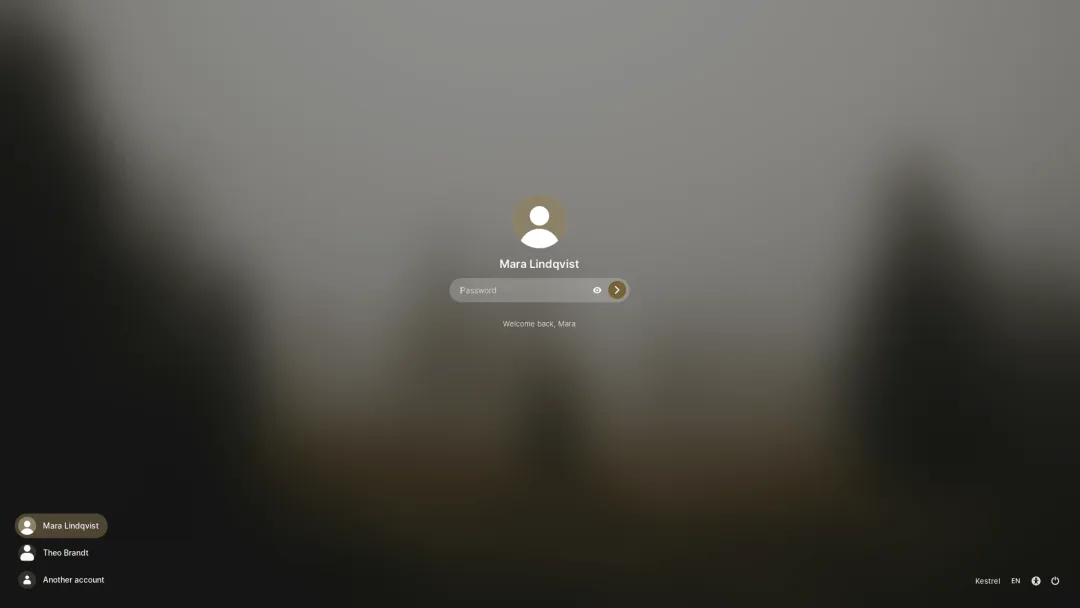
The lock screen shows the time, your notifications if you allow it, and what’s playing. Swipe up, click or press a key to unlock with your password or fingerprint. Its controls include the battery, the keyboard layout, accessibility options and power.
The login screen lists the people on the computer, remembers who signed in last, and shows each person’s own wallpaper. Settings, under Login Screen, chooses who is listed, the wallpaper, the default session and automatic login.
Windows and apps
Section titled “Windows and apps”Windows open once their first frame is drawn, so you never see an empty frame. They have rounded corners, except when maximized, snapped or full screen. A window that turns up late, while you’re already doing something else, opens behind the one you’re using and asks for attention instead of taking focus.
GNOME and KDE apps work as they do elsewhere, and Kestrel shares its colours with them if you like; see Matching other apps.