Install from a USB stick
Download
Section titled “Download”| File | For |
|---|---|
| luft-latest.iso | Any computer. It carries both of Luft’s images and installs offline |
| luft-latest-standard.iso | Computers without NVIDIA graphics |
| luft-latest-nvidia.iso | Computers with NVIDIA graphics |
Each file has a checksum next to it with .sha256 added, such as luft-latest.iso.sha256.
For testing, the same three come from the newest nightly build: luft-nightly.iso, luft-nightly-standard.iso and luft-nightly-nvidia.iso. A computer installed from a nightly stick keeps following the nightly builds.
Write the stick
Section titled “Write the stick”Use a stick of 4 GB or more. Everything on it is erased.
- Meet Luft downloads and writes it in one go, on Windows and Linux, and can add Luft to a Ventoy stick.
- Fedora Media Writer, balenaEtcher, or Rufus in DD mode work too.
- On Linux:
sudo dd if=luft-latest.iso of=/dev/sdX bs=4M oflag=direct status=progress, with the stick’s device in place of/dev/sdX.
Start from it
Section titled “Start from it”Start the computer from the stick with the firmware’s boot menu, usually F12, F11 or Esc while the maker’s logo shows. Secure Boot can stay on.
The stick goes straight to Install Luft. If the screen stays dark, hold Esc while the stick starts for a menu with a basic graphics mode.
Install Luft
Section titled “Install Luft”- Language, keyboard and time zone. Luft guesses them from the firmware, from Windows if it’s on the computer, and from the network once you’re online.
- Where Luft goes.
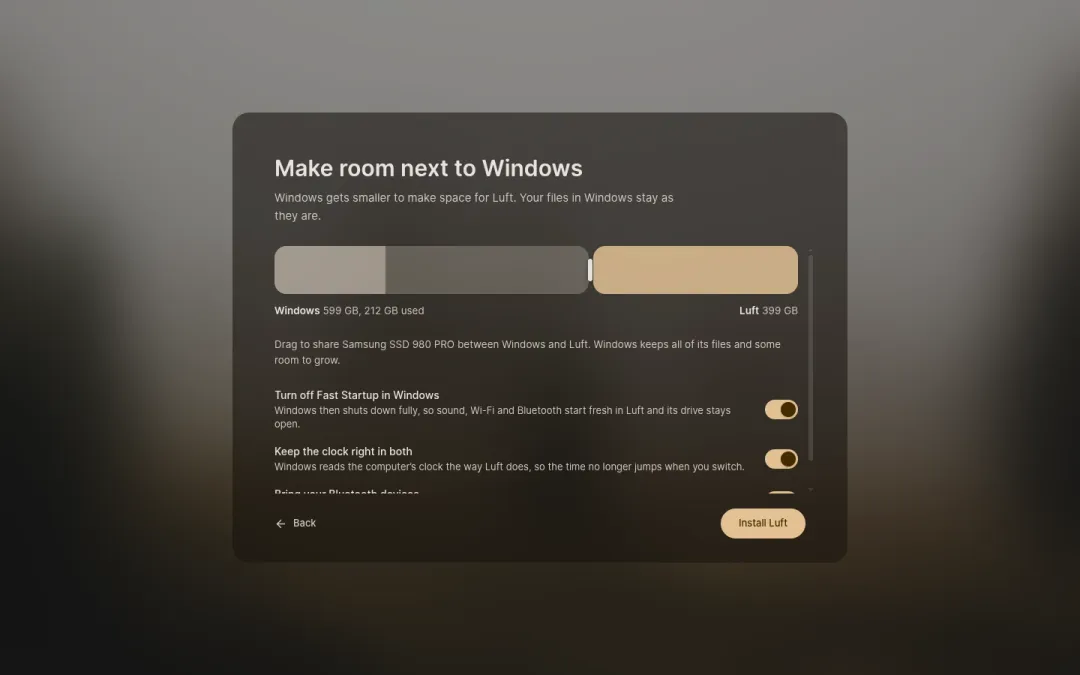
- Alongside Windows makes Windows’ partition smaller and puts Luft in the space it frees. Drag the bar to share the drive; Windows keeps its files and at least 20 GB to grow. See Installing alongside Windows.
- Replace puts Luft in place of a Linux system and keeps your files, accounts and settings. See Replacing another Linux.
- Use a whole drive erases one drive.
- Just try Luft opens the desktop from the stick and changes nothing.
- Custom opens Disks, where you can make free space your own way, then pick it.
- Wi-Fi, if you like. Luft is already copying by now.
- Your account: your name, a user name and a password.
- Restart. With Secure Boot on, Install Luft first shows the one blue screen that comes after the restart, and the code to type there. Take out the stick once the screen goes dark.
Copying starts as soon as you confirm where Luft goes, and nothing on any drive changes before that. Luft needs at least 32 GB of space.
Install Luft picks the image with NVIDIA’s driver when the computer has an NVIDIA graphics card. On the stick itself, NVIDIA cards run on the open-source driver, so setup looks the same everywhere.
What goes on the drive
Section titled “What goes on the drive”| Partition | Size | Holds |
|---|---|---|
| EFI system partition | 1 GB | What starts Luft. A drive that already has one, such as Windows’, shares it when it has 1 GB or more |
| Luft startup | 2 GB | Luft’s signed startup images, when the drive’s EFI system partition is smaller than 1 GB, as Windows’ usually is |
| Luft | The rest | The system and your files, on btrfs |
Next comes the first start.