The first start
The blue screen
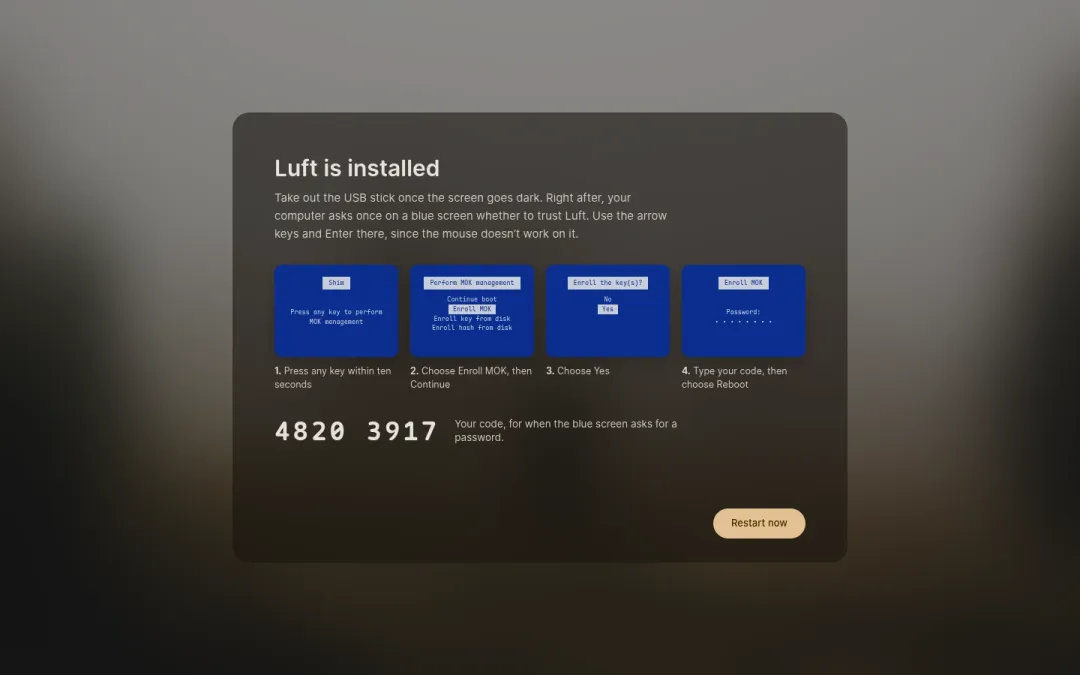
Section titled “The blue screen”With Secure Boot on, your computer asks once whether to trust Luft, on a blue screen right after the restart. Install Luft shows you this screen before the restart, with an eight-digit code.
- Press a key within ten seconds.
- Choose Enroll MOK, then Continue, then Yes.
- Type the code and choose Reboot.
The blue screen only takes the arrow keys and Enter.
If you miss it, nothing breaks. The firmware moves on to an entry called Luft without its key, which starts the same Luft through Fedora’s signed boot loader. That way has no TPM unlock, so an encrypted disk asks for its recovery key or passphrase. Luft asks again with a new code at the next starts, up to three times, and shows the code before each restart. After that, you can ask again from Settings, under Security.
Signing in
Section titled “Signing in”Luft starts at the login screen with the account you made. Sign in with your password, and Install Luft opens over the blurred wallpaper for the last steps:
- Secure Boot, only when the blue screen was skipped. Install Luft gets a new code and restarts to ask again.
- Encryption, if you like. Luft encrypts the disk in the background after the next restart. With a TPM, the disk unlocks by itself; without one, it asks for a passphrase at every start. Keep the recovery key it shows somewhere other than this computer.
- Fingerprint, if the computer has a reader. Add a finger to sign in and unlock with it.
- Done. The desktop opens, or the computer restarts when a step needs it.
Every step can be skipped. Secure Boot and encryption are in Settings under Security, and fingerprints under Users. Security explains what each protects.
What Luft picks for you
Section titled “What Luft picks for you”- Display scale, from the screen’s size and resolution. See Display scaling.
- Tap to click on touchpads.
- Region formats: when your time zone is in another country than your language, your formats follow the time zone’s country, so a German time zone starts the week on Monday. You can change the first day of the week in Settings, under Date & Time.
All of these can be changed in Settings.
Before the desktop appears
Section titled “Before the desktop appears”The first time you sign in, Luft adds Helium, its web browser, to your account, even when you’re offline. If you came from Meet Luft, it also removes Meet Luft’s partitions or folder and grows into their space.